Important: Submitting your project through FilmFreeway does not complete the screening file delivery process. Filmmakers must also upload their screening file through CineSend when prompted by the First Run team in early December.
Important Deadlines:
- FilmFreeway Submission Deadline: December 1, at 11:59 PM EST
- CineSend Screening File Deadline: December 8, at 11:59 PM EST
All screening files must be successfully uploaded to CineSend by the December 8 deadline. No replacement files, revised exports, or additional edits will be accepted after the applicable deadlines. Please carefully review your file before uploading.
First Run Screening File Requirements
Your file must meet the following basic specifications:
- File Format: QuickTime (.mov)
- Video Codec: Apple ProRes 422 or ProRes 422 HQ
- Frame Rate: 23.976 or 24 fps
- Resolution: 2048 × 1080 (2K) or 1920 × 1080 (Full HD)
- Audio: Stereo (Left/Right)
- File Naming: ProjectTitle_FilmmakerName_
MMDDYY - DCP files are not accepted for First Run.
- Additional technical requirements, including subtitle placement, audio levels, and photosensitive epilepsy guidelines, are outlined in the First Run Technical Specifications.
- Your screening file must be fully uploaded by December 8, at 11:59 PM EST.
CineSend Submission Requirements
- All filmmakers are responsible for submitting their screening files on time.
- Files must meet the published First Run technical specifications.
- Files that do not meet the required specifications may be rejected.
- Revised or replacement files will not be accepted after the deadline.
- Failure to deliver a complete, compliant screening file by the deadline may affect your project's eligibility to participate in First Run.
For questions about First Run submission requirements, deadlines, or your CineSend upload invitation, please contact: First Run Team firstrun@nyu.edu
CineSend Submission Process
One of the upload methods available in CineSend Requests is to upload your file using a standard file transfer method called Quick Upload, similar to Google Drive. This method is less reliable and will take longer, but can be workable for smaller file sizes. With larger files, you may need to upload using Aspera Connect.
To upload your screener:
Follow the unique upload link in the email you received from the NYU Festivals group.
Click on the Select button.

Click on Upload file or Upload DCP, depending on which type of export you want to upload.
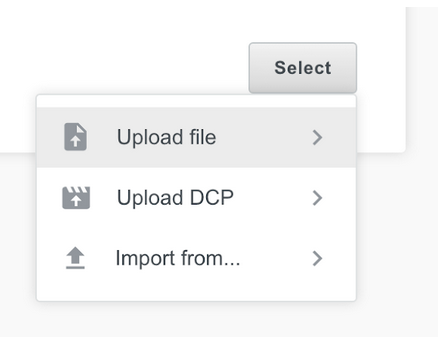
Choose Upload file or Upload DCP, depending on the type of file you're uploading.
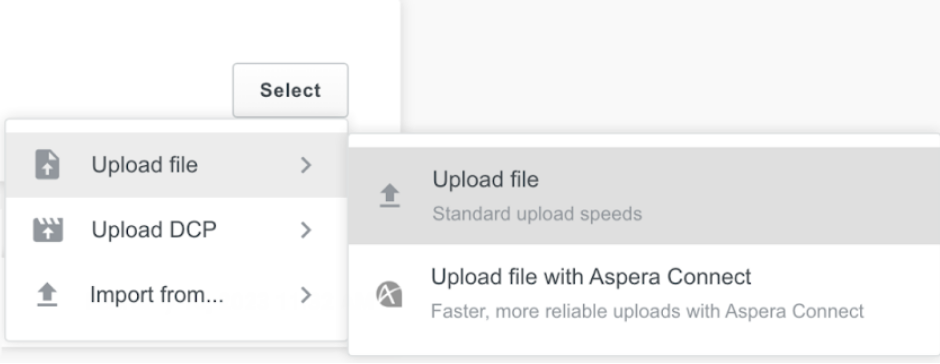
A Finder window will pop up. Select your file and click the Open button.

The upload will begin. You can view the upload progress in the Active uploads bar.

Once your upload is completed, a checkmark will appear next to the file name.


